Use autofill on websites
Use autofill on websites
my-id.ca autofill is designed so you choose where it runs. Nothing is injected into bank login pages or arbitrary sites until you enable the feature for that website.
Enable autofill for one site
- Navigate to the form you need (example: an employer’s application URL).
- Click the my-id.ca autofill icon.
- Turn Autofill on for this site.
If the site redirects between www and bare domain, you may need to enable autofill again on the variant you actually use.

Fill fields one at a time
- Click into a text-like field (email, phone, plain text, many textareas).
- When suggestions exist, pick the value that matches the label of the question.
- If the suggestions list is closed, try Alt+Shift+A to open suggestions for the focused field (when autofill is enabled for that page).
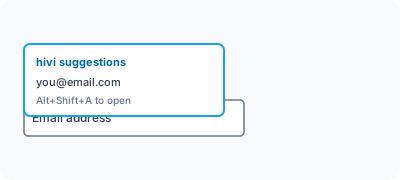
Fill many fields at once
From the extension popup, Fill all on this page attempts to populate many recognized inputs in one pass. Use it when the page is a long generic application and you still intend to review every field before submit.
AI-assisted suggestions (when offered)
When there is no direct match in your saved data, the extension may offer a way to ask for AI-generated text for that field. Treat that output as draft text: edit for accuracy and tone before you submit. See also the AI reliability notice.
LinkedIn and job postings
On LinkedIn profile pages, the extension can offer to import visible profile information into your my-id.ca person record (you trigger the action). When your account includes job-tracking features, some job posting pages may offer capture into your latest job search. These actions are explicit: they run when you click the relevant control.
Troubleshooting
| If you notice… | What to try |
|---|---|
| Empty suggestion list | Confirm autofill is on for this origin; refresh; sign in again in the popup. |
| A value needs a refresh | Open your profile at my-id.ca and update the matching field. |
| Some fields stay blank | Some sites use custom widgets; complete those fields manually or from notes. |
| Embedded iframe form | Autofill can work in many embedded apply flows; enable autofill on the top page first. |
Related
Frequently asked questions
- Why does autofill do nothing on a new site?
- Per-site opt-in is on by default. Open the extension popup and toggle Enable on this site before using autofill there.
- Can I disable autofill for one site without uninstalling?
- Yes. Open the popup on that site and toggle Disable on this site. Other enabled sites continue to work.
- Does Fill all submit the form for me?
- No. Fill all only inserts values. You always review and click submit yourself.